> For the complete documentation index, see [llms.txt](https://knowledge.maica.com.au/maica-knowledge-base/llms.txt). Markdown versions of documentation pages are available by appending `.md` to page URLs; this page is available as [Markdown](https://knowledge.maica.com.au/maica-knowledge-base/service-agreements/agreement-management/end-agreement.md).
# End Agreement
Learn how end a Service Agreement in Maica
The **End Agreement** feature in **Maica** allows authorised users to formally end a Participant’s Service Agreement. This process ensures all related records — including **Agreement Items**, **Appointments**, and **Delivery Activities** — are updated consistently, maintaining compliance and data integrity across the system.
{% hint style="info" %}
Please note, access to this function is controlled by the Permission Set: *Maica – Service Agreement - Cancellation.* To learn more about the technical side of this function, [click here](/maica-knowledge-base/maica-administration-guide/system-processes/end-service-agreement.md).
{% endhint %}
## What does the End Agreement Quick Action do?
As mentioned, the **End Agreement** Quick Action provides a guided process for cancelling a Service Agreement. When triggered, users can specify an **End Date** and **Cancellation Reason**, after which Maica automatically:
* Updates the **Service Agreement End Date** and related **Agreement Item End Dates**
* Cancels any **future Appointments** for one-to-one sessions, and removes any Participants from any Active ongoing Schedules for group Appointments
* Cancels only the Participant’s **Delivery Activities** in group Appointments, keeping other Participants’ sessions active
* Records the **Cancellation Reason** for audit and compliance reporting
To learn more about this process, please refer to the steps below.
## Where do I find the End Agreement button?
The **End Agreement** button is available at the top right-hand corner of the **Service Agreement** record page as a Quick Action, as shown below.
{% hint style="success" %}
*If you don't initially see this Quick Action, you may need to add it to the relevant Lightning Page.*
{% endhint %}
## How do I end an Agreement?
To end a Service Agreement, follow the steps below:
#### 1. Click End Agreement
Select the **End Agreement** button from the Service Agreement record page to launch the guided screen flow.
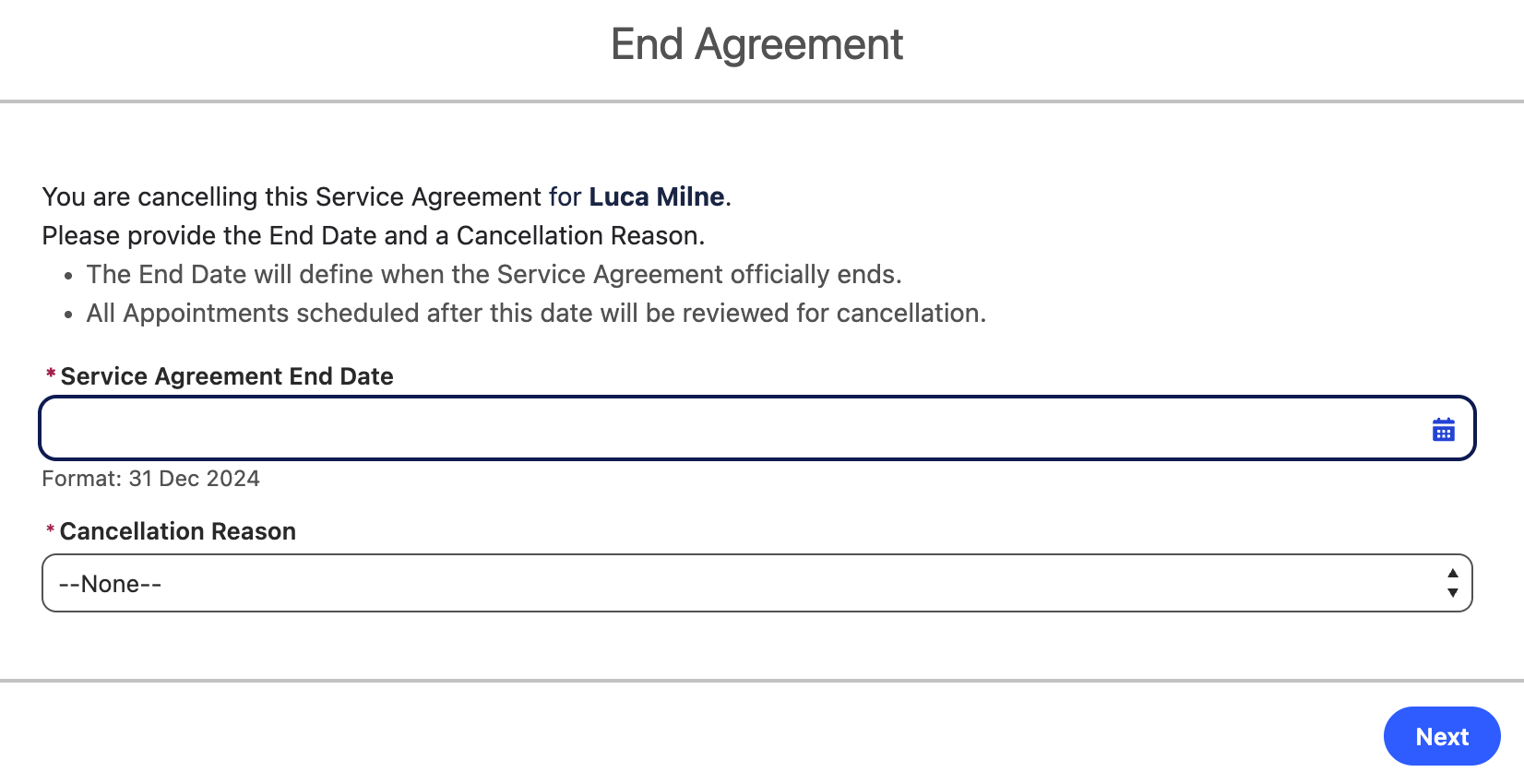
#### 2. Enter Cancellation Details
Provide the following information:
* **End Date** – The official date the Service Agreement ends. This date must not precede the Service Agreement’s start date.
* **Cancellation Reason** – Select from the available picklist options (e.g. *Participant Transferred to Another Provider*, *End of Funding Allocation*, etc.).
{% hint style="info" %}
The two above fields are mandatory, and support compliance and reporting.
{% endhint %}
* **Cancellation Reason – Other** – If ‘Other’ is selected, specify additional details.
Once entered, click **Next** to continue.
#### 3. Review Future Appointments
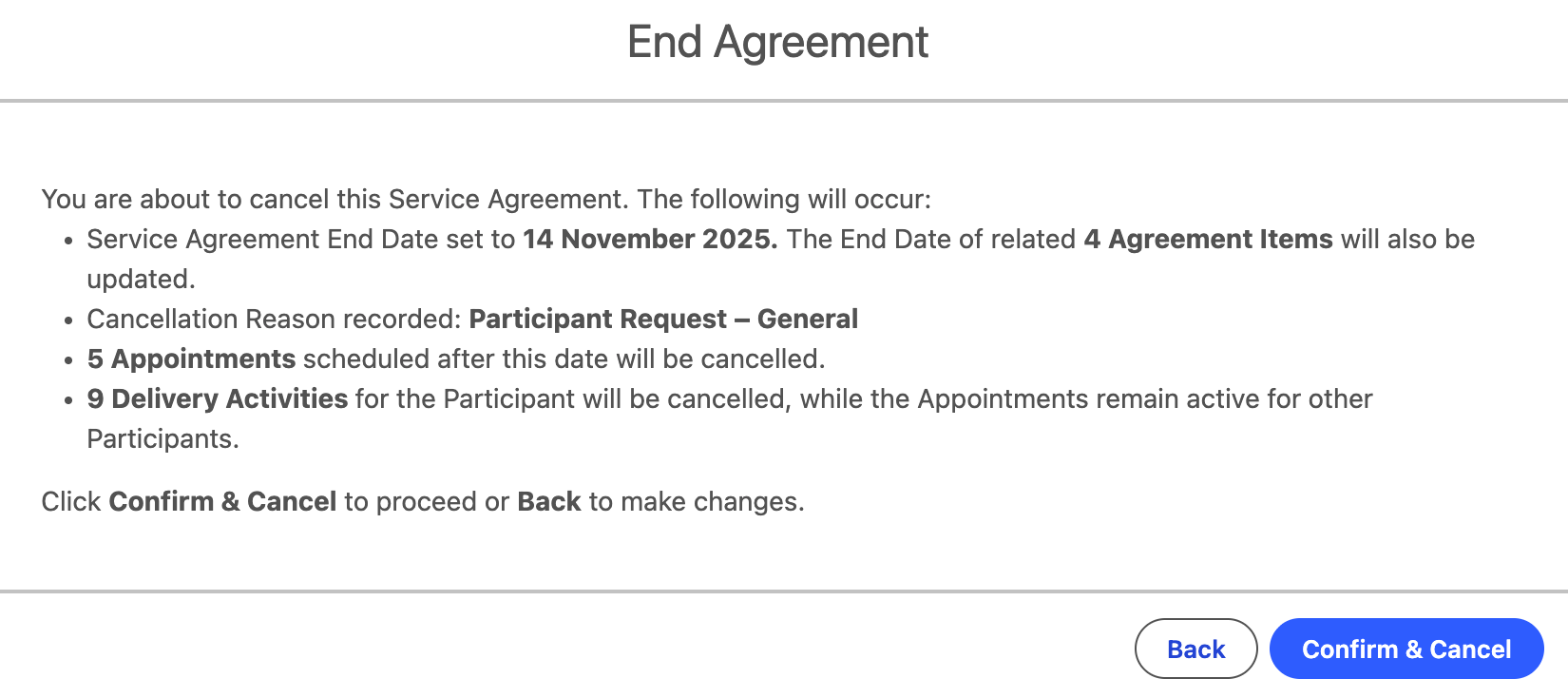
Here, Maica automatically searches for **future Appointments** linked to the Participant that occur after the entered End Date.
You’ll see a summary of the following:
* Service Agreement and associated Agreement Items End Date
* Number of Appointments that will be cancelled (where the Participant is the only Participant), and removed from where the Participant is one of many in group Appointments
* Number of Delivery Activities that will be cancelled (for group Appointments)
{% hint style="warning" %}
This step provides an overview of what will be cancelled automatically. These actions cannot be undone.
{% endhint %}
#### 4. Confirm Cancellation & Complete
Review the confirmation summary before finalising, and then click **Confirm & Cancel** to proceed or **Back** to make changes.
{% hint style="success" %}
Once confirmed, Maica will run the above mentioned process, and populate the Cancellation Reason field on the Service Agreement.
{% endhint %}
{% hint style="info" %}
Also, once cancelled, the **End Agreement** Quick Action will no longer be visible on the record.
{% endhint %}
## Working Examples
#### Example 1 — Participant ends service early
**Scenario:** Samantha, an NDIS Participant, decides to transfer to a new provider. Her existing Service Agreement with your organisation is due to end on **30 September 2025**, but she notifies you she’ll finish on **10 September 2025**.
**Action in Maica:** You open Samantha’s Service Agreement and click **End Agreement**. You enter *10/09/2025* as the End Date and select *Participant Transferred to Another Provider* as the reason.
**Result:**
* The Service Agreement and all related Agreement Items update to end on *10/09/2025*.
* All future Appointments and Delivery Activities scheduled **after** that date are automatically cancelled.
* A cancellation record is logged for audit.
#### Example 2 — Participant ends service early and is part of group Appointments
**Scenario:** A group physiotherapy session has four Participants. One of them, Daniel, relocates interstate and ends his Service Agreement on **20 November 2025**.
**Action in Maica:** You open Daniel’s Service Agreement, click **End Agreement**, and set the End Date to *20/11/2025* with the reason *Participant Relocated / Moved Residence*.
**Result:**
* Daniel’s Delivery Activities scheduled **after** *20/11/2025* are cancelled.
* The Appointments themselves remain active for the remaining three Participants.
* Daniel’s Service Agreement shows as *Cancelled* from *21/11/2025*.