> For the complete documentation index, see [llms.txt](https://knowledge.maica.com.au/maica-knowledge-base/llms.txt). Markdown versions of documentation pages are available by appending `.md` to page URLs; this page is available as [Markdown](https://knowledge.maica.com.au/maica-knowledge-base/the-planner/resource-optimiser/running-a-broadcast.md).
# Running a Broadcast
Learn about the process of running a Broadcast with each different Offer Method
This article walks through a few complete **Broadcasting** workflows from start to finish. It covers how different Broadcasting methods behave in practice and what to expect at each stage of the process.
Each examples uses scenarios to demonstrate how Broadcasting adapts to different rostering needs.
{% hint style="info" %}
If you have not yet reviewed the [**Broadcasting Overview**](/maica-knowledge-base/the-planner/resource-optimiser/broadcasting-overview.md) article, we recommend doing so first. It provides helpful context around Broadcasting methods and terminology used in this walkthrough.
{% endhint %}
To get started, let’s assume our Planner shows a single unfilled Shift:
* **Date:** Tuesday, 18 June
* **Time:** 7:00am – 3:00pm
* **Required Resources:** 3
Rather than assigning Resources immediately, we will use Broadcasting to fill the shift.
We will go through a Broadcast for each Offer Method & a also do an example run launched through the Find Resource Modal using the above Shift.
## First In, Best Dressed
#### Configuring our Broadcast
To begin, and from the Optimiser, let's open the Broadcast modal and select the following inputs:
* **Offer Method:** First In, Best Dressed
* **Offer Count:** 8
* **Manual Selection:** Luca Milne
{% hint style="info" %}
Manual Selection here is optional. We have selected a Resource (Luca Milne) in this case because we know that we want to send the offer to him.
{% endhint %}
* **Expiration Window:** 2 hours
* **Send Notifications:** Yes
You then click **Done** on the Broadcast modal and **Confirm** on the Optimiser.
{% hint style="info" %}
Please note there are two stages of Confirmation required to initiate a Broadcast. This is because no changes are made to data in Maica until you click Confirm on the Optimiser modal. \
\
This means you if you configure a Broadcast, but then needed to undo it or make changes, you can up until the point of clicking Confirm on the Optimiser itself.
{% endhint %}
#### Running the Broadcast
Once you click Confirm, the Broadcast begins. This means:
* Luca Milne and the 7 next most suitable Resources receive a Shift offer in the Mobile App
* The Appointment is marked as having a **Live Broadcast**
{% hint style="info" %}
You can identify and filter by Live Broadcasts by reopening the Optimiser and noticing a Blue Broadcast icon next to the record under the status. This icon will turn grey once they Broadcast window expires, which you can also filter by.
{% endhint %}
As responses come in, Maica processes them in real time:
1. The first Resource accepts → **Confirmed**
2. Luca Milne accepts → **Confirmed**
3. The third Resource accepts → **Confirmed**
{% hint style="info" %}
In First In, Best Dressed, Resources are immediately set to Confirmed as they Accept an offer without any additional steps required from Rostering Staff. This will automatically add the Shift into their Planner.
{% endhint %}
Once the third Resource is confirmed:
* The Appointment is marked as **Filled**
* Any remaining Pending or Accepted offers are automatically withdrawn and will no longer be visible to Resources on the Mobile App.
{% hint style="success" %}
Rostering Staff will still be able to see them on the Record as Withdrawn Resources and this can be used for Reporting purposes
{% endhint %}
## Highest Scoring
#### Configuring our Broadcast
For the Highest Scoring Offer Method, we’ll use the same Shift:
* **Tuesday, 18 June – 7:00am to 3:00pm**
* **Required Resources:** 3
However this time let's set some Ranking Criteria for this run, as this may impact our Scoring Metrics.
For this example, let's say we add one criterion:
* **Resource → Gender equals Woman**
Now Resources who match the rule will receive a higher scoring contribution.
{% hint style="info" %}
Remember, **Resource Pool** = *Who* is considered & **Ranking Criteria** = *How well* they score
{% endhint %}
{% hint style="info" %}
To learn more about how Ranking Criteria works in Maica, [click here](/maica-knowledge-base/the-planner/resource-optimiser.md#ranking-criteria).
{% endhint %}
In the Broadcast configuration modal, let's set:
* **Offer Count:** 10
* **Offer Method:** Highest Scoring
* **Manual Selection:** *Empty*
* **Expiration Window:** 2 hours
* **Send Notifications:** Yes
& then Broadcast.
#### Running the Broadcast
Now, as Resources respond:
* Accepted offers are tracked, but **not confirmed immediately**
* The Appointment remains **Unfilled** while responses are collected and until the Response Window expires.
Once the response window does end (or all responses are received), Maica evaluates the results and:
1. Reviews all Accepted offers
2. Ranks those Resources using their Optimisation Score based on Ranking Criteria defined above
3. Confirms the top 3 Resources
Any remaining Accepted offers are set to **Withdrawn**.
The Appointment is now marked as **Filled**.
## Manual Selection
#### Configuring our Broadcast
Again, for Manual Selection, let's use the same Shift:
* **Tuesday, 18 June – 7:00am to 3:00pm**
* **Required Resources:** 3
From the Optimiser, this time select Manual as the Offer Method and use the same configuration as above.
Before we begin let's build a Resource Pool for this run, as we may only want a certain group of Resources to receive the offer.
Currently, let's assume we have **184 active Resources** which we want to narrow down.
Open the **Resource Pool** and start applying filters to refine the group.
1. Select **Resource Pool**.
2. Click **Add Criteria**.
3. Choose a **Field** (e.g., *Resource → Work Type*).
4. Select an **Operator** (e.g., *equals*).
5. Select a **Value** (e.g., *Full-Time*).
After applying this first filter, our pool narrows from **184 → 126** Resources, and we now begin our Broadcast.
{% hint style="info" %}
To learn more about how the Resource Pool works in Maica, [click here](/maica-knowledge-base/the-planner/resource-optimiser.md#resource-pool).
{% endhint %}
#### Running our Broadcast
During the broadcast:
* Resources receive offers and can Accept or Decline, similar to other Offer Methods
* Accepted offers remain in **Accepted (Pending Approval)**
{% hint style="info" %}
In this scenario, Resources will get an alert on the Mobile App that they have Accepted a Shift and now awaiting Managers Approval.
{% endhint %}
Let's say in this scenario that only **2 Resources** accept the offer, when we **Required 3**.
As this is a Manual Run, we will need to go back into the Optimiser to view the outcome of and action the Broadcast. There are 2 different ways we can do this and assess the results:
1. In the Resources Column next to the Shift with updated Resource Statuses.
2. In the Shift Insights.
{% hint style="info" %}
Both of the above options are further [detailed here](/maica-knowledge-base/the-planner/resource-optimiser.md#resource-column).
{% endhint %}
Still at this point no Resources are confirmed and the Shift remains **Unfilled**
After reviewing the Shift Insights, let's manually Confirm the 2 Accepted Resources.
Now, we still need **1 additional Resource** to fully fill the Shift.
Rather than running the same Broadcast again, let's re-broadcast with slightly different parameters.
This time, we will:
* Expand the Resource pool to allow for *Part-Time* staff to also be included
* Change the Offer Method to First In, Best Dressed
Now we quickly have our final Acceptance, and the Shift is automatically **Filled**.
{% hint style="success" %}
Re-broadcasting allows you to adjust your approach without starting over. You can change Offer Counts, Pools, and Methods, etc as needed.
{% endhint %}
{% hint style="info" %}
It is important to note, especially for Manual Selection Broadcasts, that if you wish to review the results of your Broadcast you must reopen the Optimiser from within the same Period on the Planner that you first issued the offers.
{% endhint %}
## Find Resource Manual Resource Selection
There is one final way we are able to Broadcast a Shift or Appointment, and this is directly through the Find Resource modal. Here, any of the above Methods can be used.
{% hint style="info" %}
For some background on the Find Resource Modal, [click here](/maica-knowledge-base/the-planner/resource-optimiser.md#manually-assign-resources).
{% endhint %}
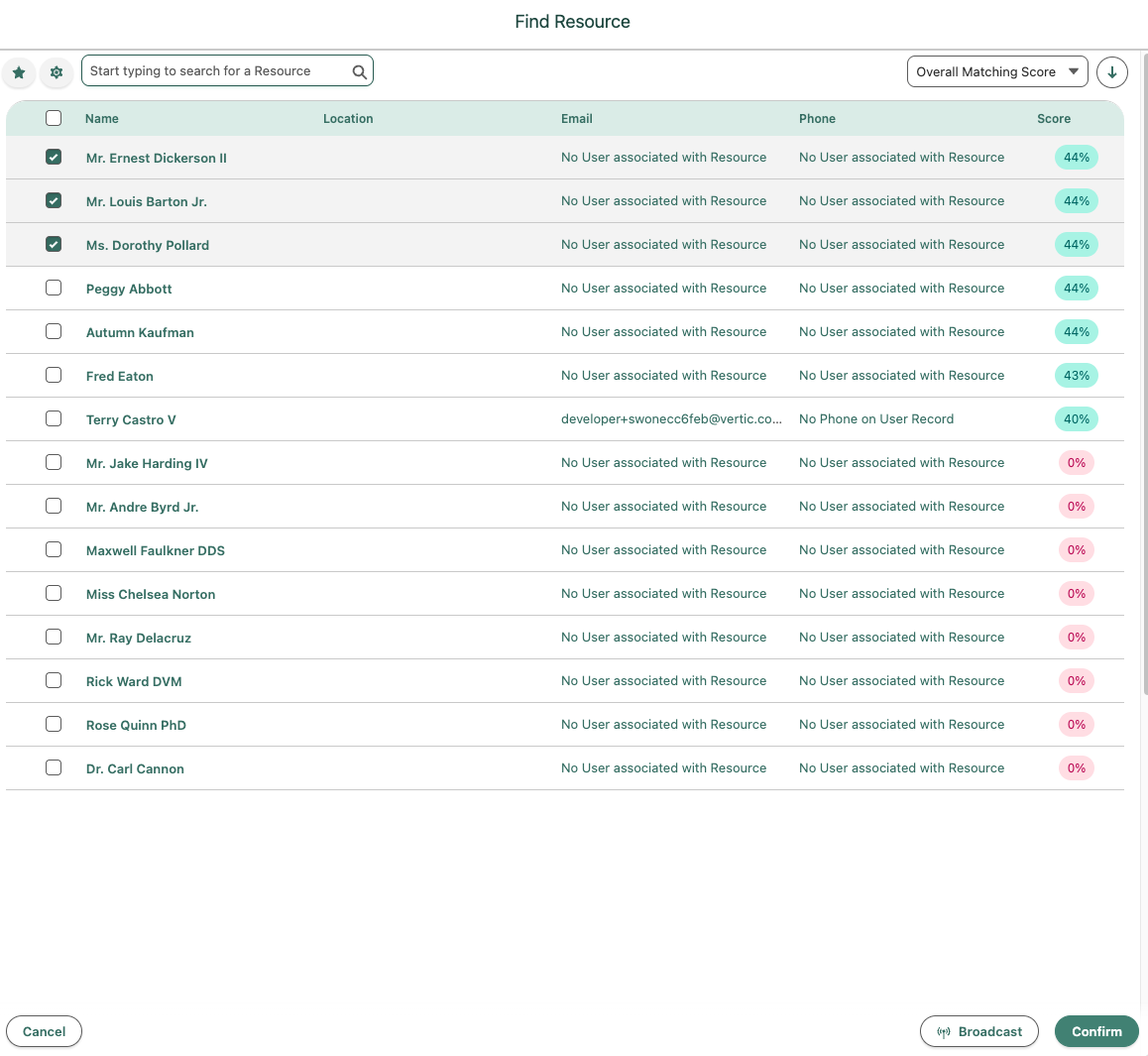
To do so, select a Shift from the Optimiser, and instead of opening the Broadcast Modal, open the Find Resource Manually Modal.
From here, you will be able to preselect any number of Resources you wish with a clear view of how they are ranked (in order of Optimisation Score) for that Shift, as shown below.
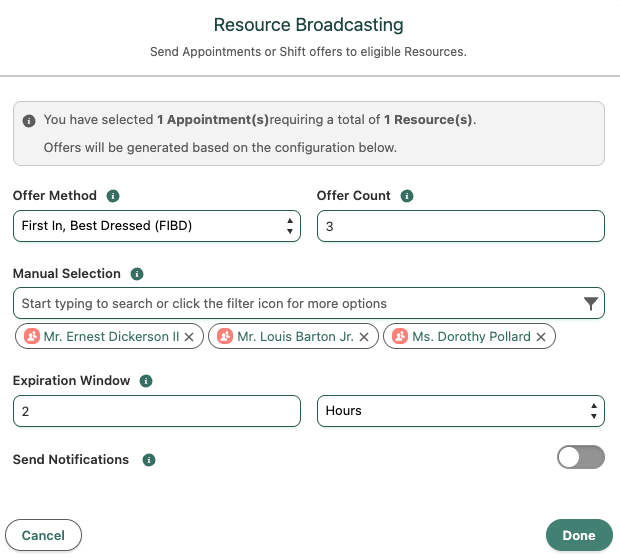
From here, you can select Broadcast in the bottom right to trigger the Broadcast Configuration Modal with the above 3 Resources preselected and the Offer Count defaulted to 3.
Now you are ready to configure the rest of your Broadcast.
This is a handy way to manually determine some or all of the Resources receiving an offer for any particular Shift with clear visibility of their Optimisation Score.
### Cancelling a Broadcast
Sometimes a Broadcast needs to be retracted before it completes. This might happen if the configuration was set incorrectly, if circumstances have changed, or if you want to start over with different parameters. Maica allows you to cancel an active Broadcast directly from the Resource Optimiser without manually withdrawing each Resource one at a time.
#### Cancelling from the Optimiser
Let's assume our **Tuesday, 18 June** Shift from earlier examples has an active Broadcast with 2 Pending offers and 1 Accepted offer, but we have realised the Expiration Window was set too short and want to start over with a longer window.
From the Optimiser, select the Shift. When the selected rows include one or more active Broadcasts, the **Broadcast** button displays a dropdown with two options:
* **New Broadcast**: start a new Broadcast for the selected records
* **Cancel Broadcast**: retract the currently active Broadcast on the selected records
Click **Cancel Broadcast**, then click **Confirm** on the Optimiser to commit the cancellation.
{% hint style="info" %}
As with all Resource Optimiser actions, the cancellation is staged in the Optimiser interface and only commits when you click **Confirm**. You can review or undo the cancellation up until that point.
{% endhint %}
{% hint style="info" %}
When no active Broadcasts are present in the selection, the **Broadcast** button continues to behave as before with no dropdown shown.
{% endhint %}
#### What happens when a Broadcast is cancelled?
Once the cancellation is confirmed:
* All Resources in **Pending** or **Accepted** status on the affected records are moved to **Withdrawn**.
* The following Broadcast fields are cleared on each affected Appointment or Shift: Offer Method, Offer Count, Broadcast Configuration, Broadcast Ends, and Expiration Window.
* The records are no longer marked as having a Live Broadcast.
After cancellation, the records are back in the same state as if no Broadcast had been initiated. You can configure and start a new Broadcast, manually assign Resources via the Find Resource Modal, or take any other action available in the Optimiser.
{% hint style="info" %}
Withdrawal notifications are **not** sent to Resources when a Broadcast is cancelled. The cancellation is silent from the Resource's perspective, even for Resources who had already Accepted the offer. This avoids generating "withdrawal" alerts for Resources whose offers were retracted as part of a Scheduler-initiated correction.
{% endhint %}
{% hint style="success" %}
Cancel Broadcast also works as a bulk action. If you select multiple Appointments or Shifts with active Broadcasts, cancelling applies to all of them in a single step.
{% endhint %}
#### Example scenarios
* You started a Broadcast with the wrong Expiration Window and need to retract it before workers respond.\
Open the Optimiser, select the Shift, click **Broadcast → Cancel Broadcast**, then **Confirm**. All offers are withdrawn and you can immediately configure a new Broadcast with the corrected window.
* A Broadcast has 2 Accepted Resources and 3 Pending offers, but circumstances have changed and you no longer need the Shift filled this way.\
Cancel the Broadcast to move all 5 Resources to **Withdrawn** and clear the Broadcast configuration on the Shift. You can then re-broadcast with different parameters or assign Resources directly.
* You have 12 Appointments with active Broadcasts that all need to be cancelled because of a scheduling change at the Participant level.\
Select all 12 in the Optimiser, click **Broadcast → Cancel Broadcast** once, then **Confirm**. The cancellation applies to all 12 in a single bulk action.