> For the complete documentation index, see [llms.txt](https://knowledge.maica.com.au/maica-knowledge-base/llms.txt). Markdown versions of documentation pages are available by appending `.md` to page URLs; this page is available as [Markdown](https://knowledge.maica.com.au/maica-knowledge-base/mobile-worker-app/my-offers.md).
# My Offers
Learn about the My Offers component and Broadcasting functionality within the Mobile Application
## My Offers Overview
The **My Offers** tab within the Mobile App lets you view and respond to any Appointments or Shifts that have been Broadcast to you by your organisation.
Below is a breakdown of how to interact with your offers on the Mobile App.
***
## Interacting with your Offers
### 1. Offer Appears on Your Home Screen
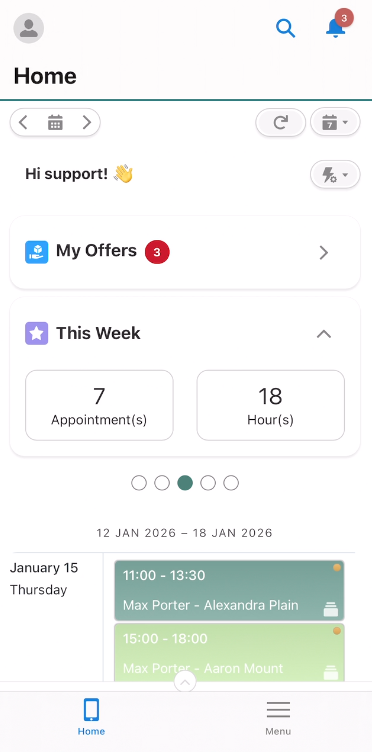
When an offer has been sent to you, you’ll see a red badge appear on the **My Offers** tile on your Home screen. This number reflects how many pending offers you currently have.
{% hint style="info" %}
You can still access My Offers even if no badge is showing – it simply means you have no current offers.
{% endhint %}
{% hint style="info" %}
If your organisation has configured it - you will also recieve Notifications for your Offers. These will come through as push notifications on your Mobile Home Screen and also show as Salesforce Notifications, as shown in the top right corner of the above screenshot.
{% endhint %}
***
### 2. Tap into ‘My Offers’ to View Available Shifts
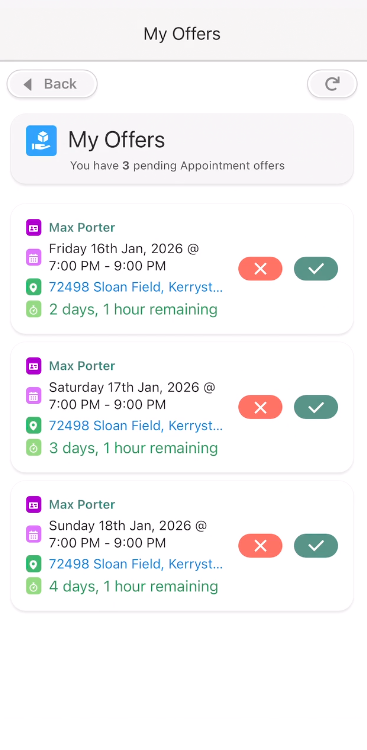
Tapping on **My Offers** opens a list of all available Shift or Appointment Offers sent to you.\
Each offer is contained within a Summary Block that shows:
* The **Participant(s)**
* The **Date and Time** of the Shift
* The **Location**
* How much **time remains** to respond (this is reliant on the *Broadcast Offer Method*, and may not always hold true. This is further explained below).
Here, you can either interact with (Accept or Decline) the offer directly from this list (using the **✓** or **✕** buttons), or tap into the offer for more detail.
### 3. View and Respond to the Offer
Tapping into the offer opens the Shift / Appointment screen. Here, you’ll be able to review more information, including:
* Time and duration
* Location
* Participant
* Event type
* Status
* Assigned service
* Any special instructions or information from your organisation
At the bottom of the screen, you’ll see the **Accept** and **Decline** buttons, you can then interact with and action your offer from this screen too.
***
### 4. What Happens After You Accept or Decline
**If you Accept, the Shift /** **Appointment will either:**
* Be added to directly into your Planner immediately.
* You’ll receive a confirmation notification that you are now assigned to the appointment.
OR
* You will be moved into an Accepted Status, meaning the Shift will require managers Approval before being added into your Planner.
* You'll recieve a confirmation notification that you have Accepted the Offer and no further action is required. You will then recieve another Notification once a manager actions your Acceptance on their end
* In this case, the Shift / Appointment will remain in your Offers but only have a Decline action available (meaning you can still Decline up to the point of managers Confirmation), and show on the Home Screen as ***Green*** rather than ***Red*** (meaning you have actioned the Offer).
{% hint style="info" %}
Please note, as a Mobile User, you will not have control over these outcomes, only whether you Accept or Decline. The above behaviour is determined by Rostering staff at the time the Offer is sent.
{% endhint %}
{% hint style="warning" %}
An offer can only be accepted while its Broadcast is still running. If the Broadcast has ended before you accept, even if you kept **My Offers** open past the end time, the acceptance is refused with the message "This offer has expired and can no longer be accepted."
{% endhint %}
**If you Decline:**
* The offer will no longer appear in your list.
***
### Notifications and Status Changes
You may receive notifications during different stages of the broadcast process:
* **New Offer Sent:** You’ll receive a push notification when a new appointment offer is broadcast to you.
* **Offer Confirmed:** If you accept the offer and it is confirmed, you’ll receive a confirmation and it will be moved to your schedule.
* **Offer Withdrawn:** If the scheduler cancels the offer before you’ve responded, or, if another worker accepts the shift before you do, you’ll be notified that the offer has been withdrawn.